



Related posts
New Laptop Checklist: 10 Things to Check Before You Pay (Bangladesh Guide 2026)

A simple 15-minute checklist for buying a new laptop in Bangladesh: box seal, serial number, specs, screen, battery health, Windows activation and the invoice.
What Is an AI Laptop? Intel Core Ultra vs Ryzen AI vs Snapdragon X Explained (2026)
NPU, TOPS and Copilot+ explained simply. We compare Intel Core Ultra, AMD Ryzen AI and Snapdragon X laptops and tell you when an AI laptop is worth buying in Bangladesh.
Best Laptops Under 80,000 Taka in Bangladesh for Students and Office Work (2026)
Ten new laptops under 80,000 taka in Bangladesh for students and office work, with our top picks, current prices and simple buying advice.
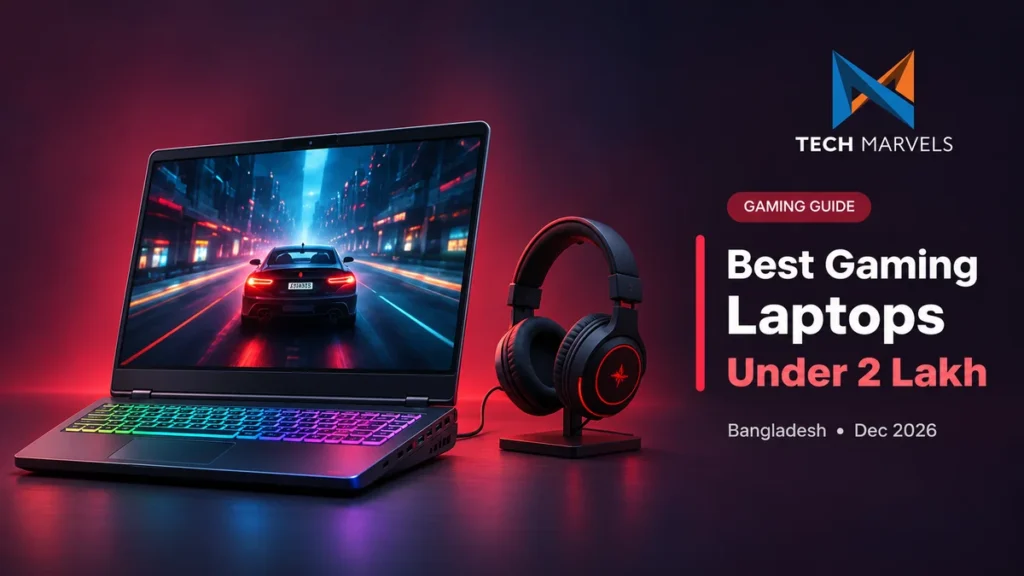
Best Gaming Laptops Under 2 Lakh Taka in Bangladesh (December 2026)
Our picks for the best gaming laptops under 2 lakh taka in Bangladesh, from RTX 3050 to RTX 5060, with current Tech Marvels prices and buying tips.
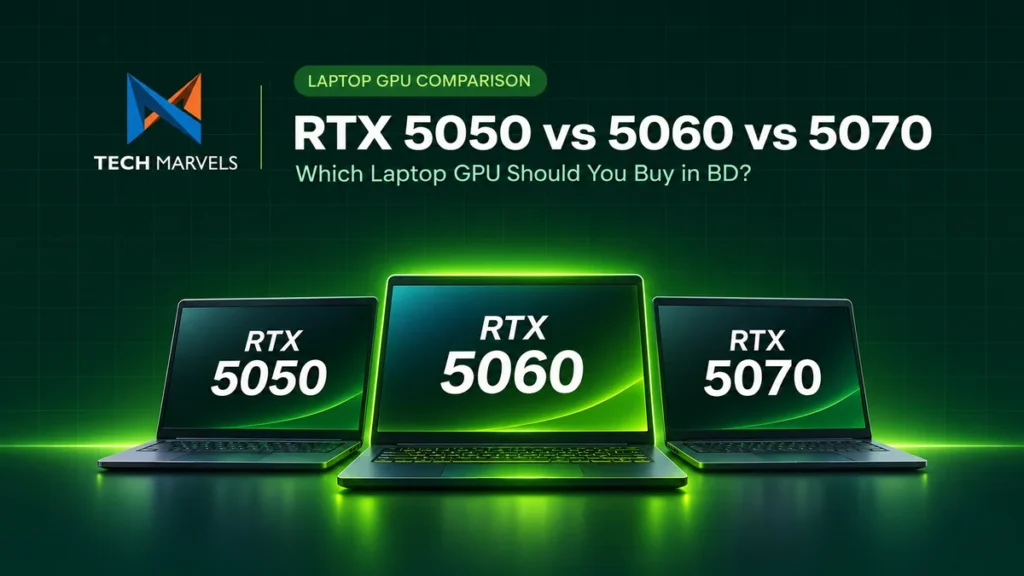
RTX 5050 vs RTX 5060 vs RTX 5070 Laptop: Which GPU Should You Buy in Bangladesh? (2026)
RTX 5050, 5060 or 5070? A simple 2026 guide to RTX 50 series laptop GPUs in Bangladesh, with specs, performance gaps, prices and the best-value models.
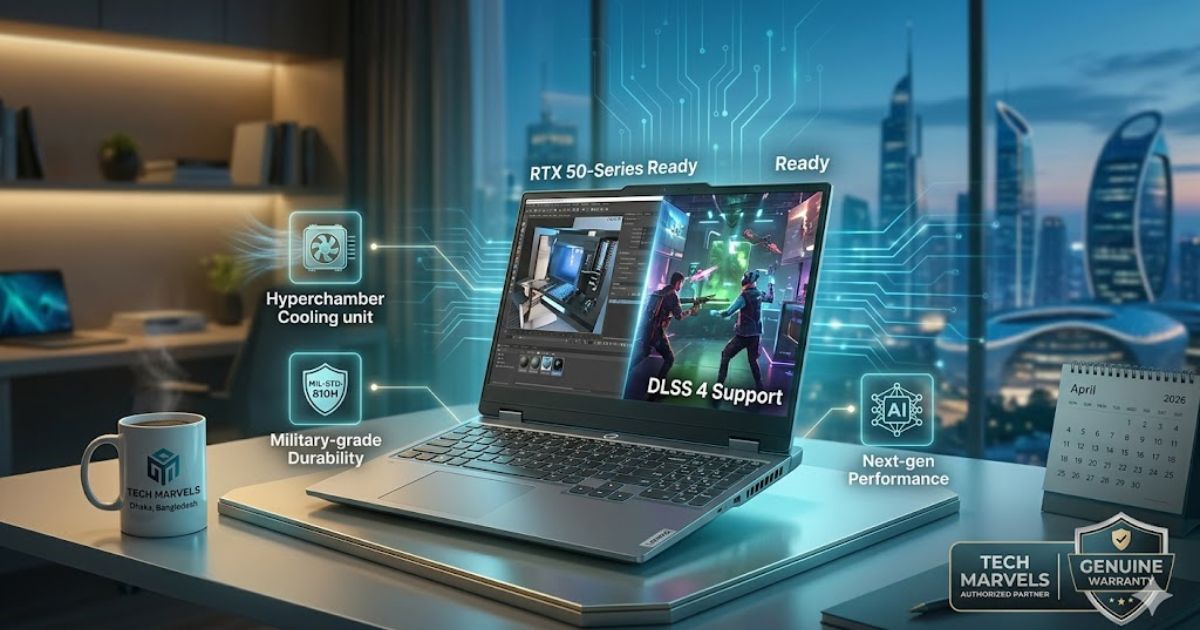
Why Choose Lenovo LOQ Laptop in Bangladesh?
In the rapidly evolving tech landscape of 2026, the Lenovo LOQ (pronounced "Lock") has solidified its position...
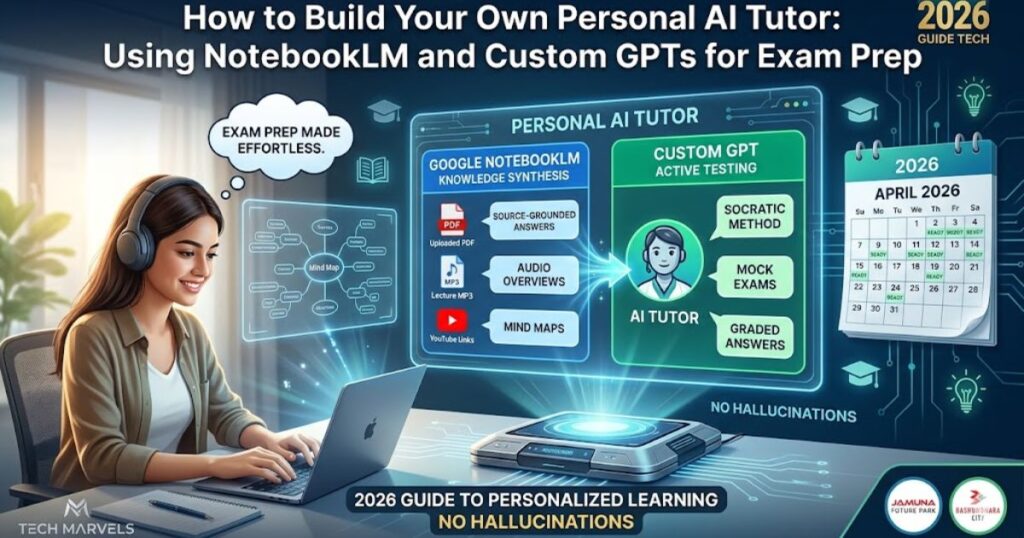
How to Build Your Own Personal AI Tutor Using NotebookLM and Custom GPTs for Exam Prep
In 2026, the secret to academic success isn't just about studying harder; it's about studying smarter with a p...

Best Laptop Brands of 2026: Which Company Should You Choose?
As we move through April 2026, the question for most buyers in Dhaka is no longer just about which laptop is t...
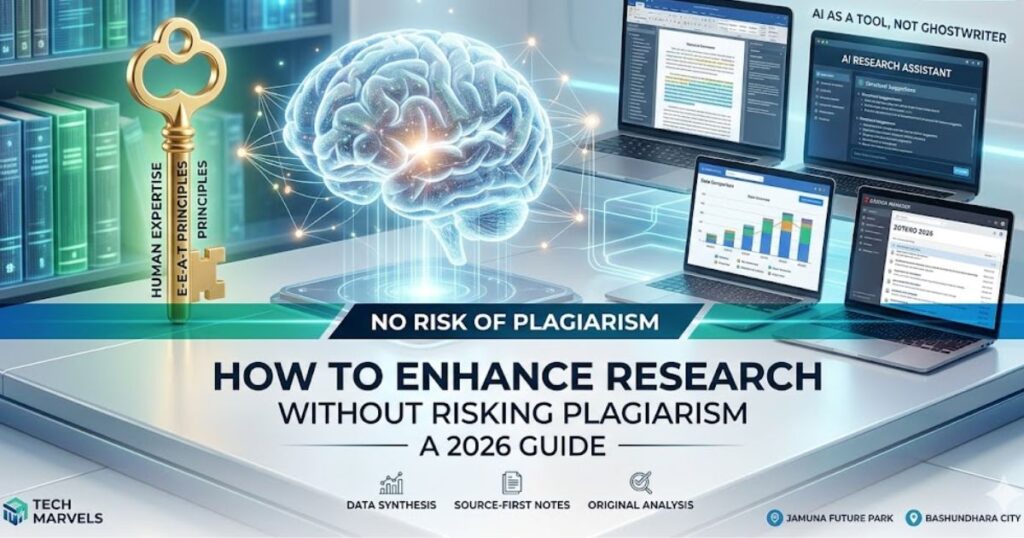
How to Enhance Research Without Risking Plagiarism: A 2026 Guide
In an era where information is limitless and AI tools are ubiquitous, the line between "inspired research" and...

Best Laptops of the Month – April 2026
As we move into April 2026, the laptop market in Bangladesh has reached a new pinnacle of efficiency and power...
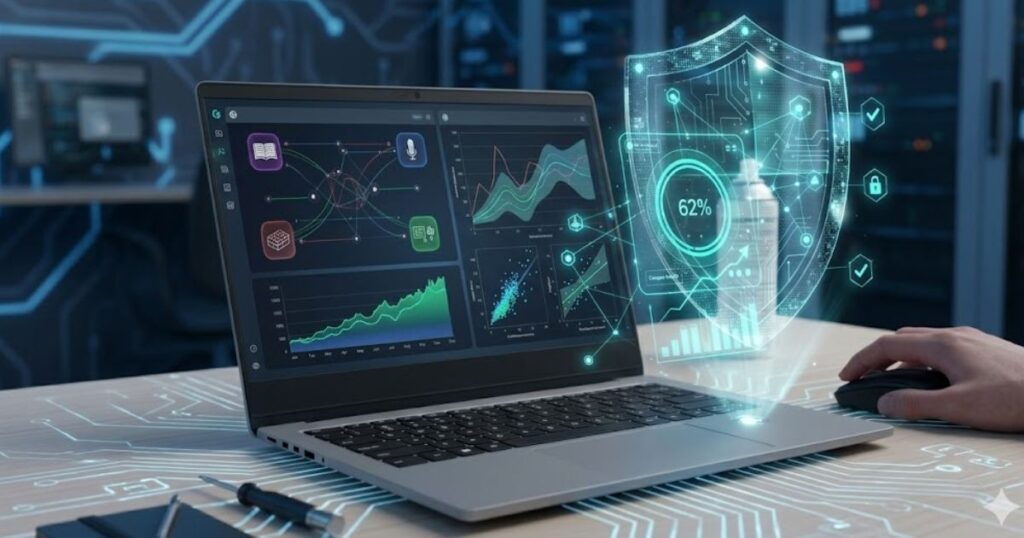
How to Protect Your Research Data: A Simple 2026 Cybersecurity Checklist
Have you ever imagined losing months of irreplaceable research data in a single second? For university student...

A Technical Guide to Speeding Up Your Laptop
Is your Windows laptop feeling more like a "wait-top" than a laptop? Even in 2026, with the power of modern pr...


