Is your laptop dying faster than it used to? Most people wait until their laptop won’t turn on before they realize the battery is dead. However, if you know how to check laptop battery health, you can save yourself from sudden shutdowns and expensive emergency repairs.
In this guide, the Tech Marvels team will show you the exact professional methods to diagnose your battery in 2026, whether you’re using a high-end gaming rig or a corporate workhorse.
Method 1: The “Secret” Windows Battery Report (Most Accurate)
Windows 11 and 10 have a hidden diagnostic tool that generates a comprehensive health report. This is the most reliable way to see your battery’s actual lifespan.
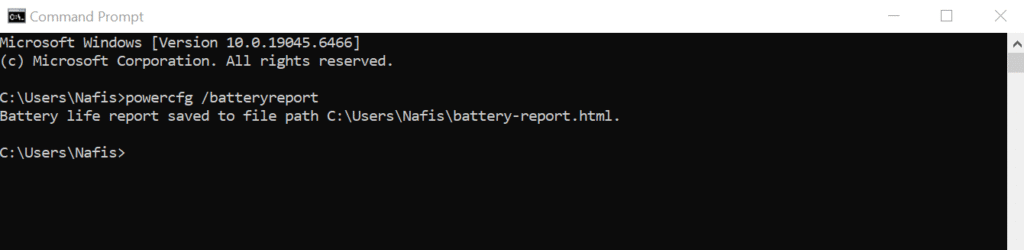
- Open the Terminal: Right-click the Start button and select Terminal (Admin).
- Type the Command: Type powercfg /batteryreport and press Enter.
- Find the File: Windows will show a path like: “Battery life report saved to file path C:\Users\YourName\battery-report.html.”
- Open it: Copy that path into your browser to view the report.
Method 2: Reading the Health Stats (Design vs. Full Charge)
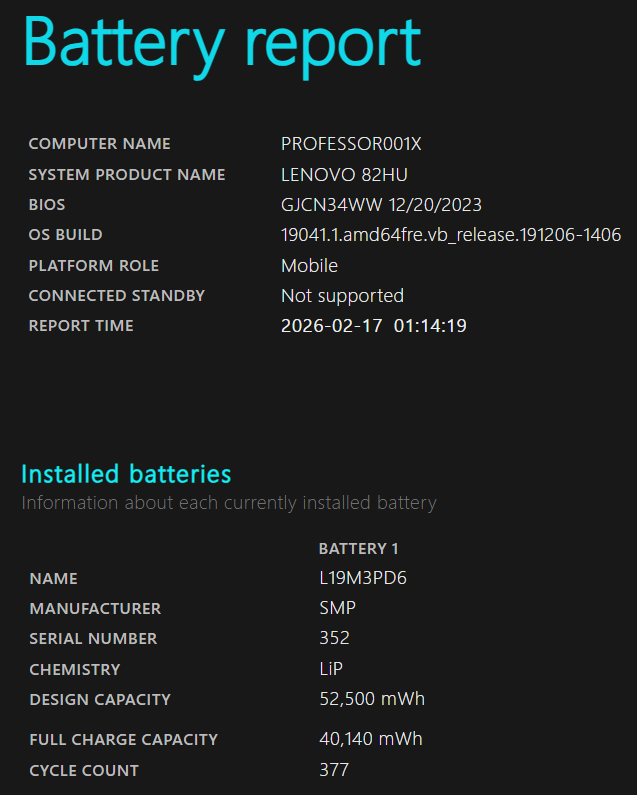
Once you open the report, look for the “Installed Batteries” section. This is where you find the answer to “how to check laptop battery health” correctly:
- Design Capacity: The original capacity of the battery when it was new (measured in mWh).
- Full Charge Capacity: The maximum amount of energy the battery can hold right now.
- Cycle Count: How many times the battery has gone from 100% to 0%.
The Health Formula: (Full Charge Capacity/Design Capacity)×100= Current Health %)
| Health % | Status | Action Recommended |
|---|---|---|
| 80–100% | Excellent | Maintain with 20-80 rule (plugged in) |
| 60–79% | Normal Wear | Monitor; consider replacement soon |
| <60% | Degraded | Replace |
Method 3: Brand-Specific Diagnostics (2026 Edition)
Most modern laptops come with built-in “Pro” apps that provide even more detail, including temperature and cell voltage:
- HP: Use HP Support Assistant → Battery Check or HP PC Hardware Diagnostics.
- Dell: Check Dell Power Manager or Dell Optimizer.
- Lenovo: Open Lenovo Vantage → Hardware Scan → Battery.
- ASUS: Use MyASUS for Battery Health Charging diagnostics.
3 Warning Signs Your Battery is Failing
Even if the software says “OK,” look out for these physical red flags:
- Sudden Drops: Your laptop jumps from 30% to 5% in a few minutes.
- Heat: The bottom of the laptop feels excessively hot during a simple charge.
- In 2026, we should be even more direct. If a battery is swelling, do not plug it into a charger. Charging a swollen battery is the most common cause of laptop fires. I have added a “Safety Warning” below.
Pro Tip: How to Slow Down Battery Aging
Now that you know how to check laptop battery health, follow the 20-80 Rule:
- Try to keep your charge level between 20% and 80%. Keeping your laptop plugged in at around 60–85% most of the time can help prolong its battery life.
- Use Battery Limit features found in your laptop’s BIOS or brand-specific apps to cap the charge at 80%.
Need a Professional Battery Test?
If your report shows a massive drop in capacity, don’t wait for it to fail. At Tech Marvels (Bashundhara City & Jamuna Future Park), we offer:
- Free Battery Health Calibration.
- Original OEM Battery Replacements.
- Thermal Cleaning (to stop heat from killing your battery).
Visit us today and keep your laptop running longer!
| Jamuna Future Park | Bashundhara City Shopping Complex |
| Tech Marvels Store Jamuna Future Park Shop No: 4B-013C, Zone #B, Level #4. Dhaka. Phone: 01518921639 Email: [email protected] | Tech Marvels Store Bashundhara City Shopping Complex Shop #91, Block #C, Level #5. Panthapath, Dhaka. Phone: 01518921639 Email: [email protected] |